
Table of Contents
- Step 1: Plan Your Smart Home Ecosystem by Room and Zone
- Step 2: Set Up Naming Conventions and Device Hierarchy
- Step 3: Smart Home Automation Ideas for Everyday Efficiency
- Step 4: Smart Home Cable Management Tips for a Clutter-Free Setup
- Step 5: Best Smart Home Organization Apps for One Dashboard
- Step 6: How to Organize Home with Smart Gadgets for Safety and Energy
- Step 7: Common Mistakes to Avoid When Organizing with Smart Gadgets
- Conclusion
- Frequently Asked Questions
Last Updated: September 23, 2026
Step 1: Plan Your Smart Home Ecosystem by Room and Zone
Learning how to organize home with smart gadgets starts with a simple habit: group devices by room and zone before you buy or install anything. A smart home ecosystem is the connected network of devices, hubs, and apps that work together in your home, and it only stays manageable when every device has a clear place and purpose.
Mapping Devices to Daily Routines
Devices that serve a daily routine earn their place. Devices that don't tend to become clutter.
- Kitchen: smart plugs for appliances, a gravity-sensor cube timer for cooking
- Living room: smart lighting, voice assistant, streaming hub
- Bedroom: smart lighting schedules, charging station
- Entryway: smart sensors, camera, smart lock
Step 2: Set Up Naming Conventions and Device Hierarchy
The fastest way to make a smart home feel organized is consistent naming. Rename every device the moment it joins your network: "Kitchen Light" beats "Device 4" every time. Use a simple formula of room + device type + number, such as "Bedroom Lamp 1" or "Hallway Sensor 2."
Step 3: Smart Home Automation Ideas for Everyday Efficiency
Good smart home automation ideas share one trait: they remove a repeated decision. Start with three routines, not thirty. The goal is reliability, not volume, a single automation that fires correctly every morning beats ten that work half the time.
- Morning: smart lighting fades on at a set brightness, a smart plug starts the coffee maker, and a speaker reads the weather and first calendar event.
- Leaving home: one command or a geofence trigger locks doors, cuts lights, lowers the thermostat, and arms sensors.
- Night: lights dim on schedule, sensors switch to security mode, and smart plugs cut power to entertainment devices that draw standby current.
Scene Configuration and Automation Triggers
Scene configuration bundles several devices into one action. Automation triggers decide when that action fires: a time, a sensor reading, your location, or a device state change. Keep triggers simple. A scene with one clear trigger runs reliably; a scene with five conditions usually breaks.
Common trigger types worth knowing:
- Time-based: sunrise/sunset offsets, specific clock times, weekday vs. weekend schedules.
- Sensor-based: motion, contact (door/window), temperature, humidity, illuminance.
- Presence-based: geofencing via phone location, Wi-Fi arrival detection, or a keypad disarm event.
- Device-state-based: when the front door unlocks, when the TV turns off, when the washer finishes.
Organizing Automations by Energy Impact
This is where most guides stop, and where a smart home actually starts paying for itself. Instead of organizing automations only by room, organize a second layer by power consumption. Smart plugs with energy monitoring report wattage and cumulative kWh per outlet in their apps.
A simple workflow:
- Plug high-draw or always-on appliances into monitoring plugs for two weeks: TV, game console, desktop PC, space heater, coffee maker, washer.
- Note which devices draw power when you are not using them (standby load). Many entertainment devices pull 5-15 watts continuously.
- Build automations that cut those outlets on a schedule or when the room is empty.
- Group the remaining always-on devices (router, hub, fridge) into a separate "Always On" room so their baseline draw does not distort your view of the rest.
Scene Naming and Room Grouping
Scenes should be named for the outcome, not the devices: "Movie Night," "Good Morning," "Away," "Focus." Voice assistants handle outcome names far better than device lists. Group scenes under the room where they are most often triggered, and keep a small set of whole-home scenes (Away, Night, Vacation) at the top level so they are always one tap away.
Step 4: Smart Home Cable Management Tips for a Clutter-Free Setup
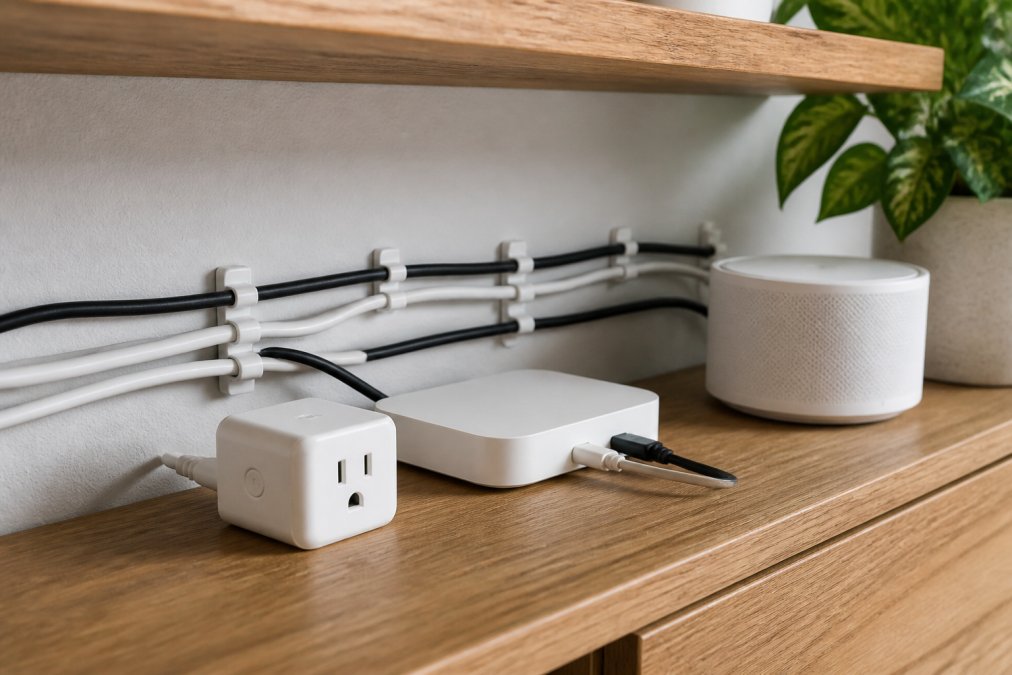
The best smart home cable management tips solve the physical clutter that apps can't. Messy cables aren't just ugly, they make hubs hard to reach and devices hard to maintain.
Managing Hubs, Bridges, and Mesh Networking
A smart bridge connects devices that use a different wireless protocol than your main network, while a hub coordinates everything in one place. Too many hubs is the most common source of confusion. Where a device supports direct Wi-Fi, connect it directly and skip the extra bridge. For coverage, mesh networking spreads signal evenly through the home, which keeps smart sensors and cameras from dropping offline in far rooms.
Step 5: Best Smart Home Organization Apps for One Dashboard
The best smart home organization apps put every device on one dashboard, grouped by room, with scenes and automations in reach. Before adding another app, check what your existing hub already supports. Every extra app is another login, another notification stream, and another thing to maintain.
Choosing a Primary Dashboard
Most homes end up with one primary app and two or three secondary ones. The primary app should be the one that can see the most devices and run the most automations. Common choices:
- Apple Home, strong for Apple-centric homes, good privacy defaults, works with Matter and Thread accessories.
- Google Home, broad device support, strong voice control, Matter support across most recent hubs.
- Amazon Alexa, widest third-party skill library, good for mixed-brand homes.
- Samsung SmartThings, strong for multi-protocol setups (Zigbee, Z-Wave, Matter, Thread) in one hub.
- Home Assistant, best for advanced users who want local control and full customization; steeper setup.
Digital Decluttering: The Step Most Guides Skip
Digital decluttering means auditing your apps the same way you would audit a junk drawer. This is the part of smart home organization that almost no ranking guide covers, and it is where performance actually improves.
- List every smart home app on your phone. Include the ones you forgot you installed.
- Match each app to a device you still own and use. If the device is gone, uninstall the app and delete the account if the vendor allows it.
- Merge overlapping apps. If two apps control the same bulbs, keep the one with better automation support and remove the other from your daily flow.
- Turn off non-essential notifications. Motion alerts from a camera you check manually do not need to buzz your phone.
- Archive old device profiles inside the app. Most platforms (Alexa, Google Home, SmartThings) let you remove a device without deleting the room, do this monthly so dashboards stay short.
Interoperability: Matter, Thread, and Cross-Platform Organization
Interoperability matters more than any single app choice. Devices that follow the same standards work inside one app, which is why checking compatibility before purchase saves hours later.
- Matter is the cross-vendor standard that lets devices from different brands join the same controller. A Matter bulb from one brand can be added to Apple Home, Google Home, Alexa, or SmartThings without a proprietary bridge.
- Thread is a low-power mesh networking protocol often paired with Matter. Thread devices need a Thread border router, many recent smart speakers and hubs include one.
- Zigbee and Z-Wave still power many older devices. They need a dedicated hub, but that hub can often expose those devices to Matter controllers.
Keeping the Dashboard Maintainable
| Task | Frequency | Why It Matters |
|---|---|---|
| Rename new devices | On setup | Keeps voice control accurate |
| Audit installed apps | Monthly | Removes dead accounts and alerts |
| Remove unused device profiles | Monthly | Speeds up app load and sync |
| Check firmware updates | Monthly | Fixes bugs and closes security gaps |
| Review automation routines | Quarterly | Removes routines you no longer use |
| Re-label physical cables | Yearly | Speeds up troubleshooting |
A dashboard is only as good as its upkeep. Ten minutes a month on app hygiene prevents the slow drift into a home where nobody remembers which app controls which light.
Step 6: How to Organize Home with Smart Gadgets for Safety and Energy
Safety and energy are where smart gadgets pay for themselves. Smart sensors watch for motion and door activity while you're away, and remote access lets you check in from anywhere. For energy, smart plugs reveal which appliances draw power around the clock, so you can schedule or cut the ones that don't need to run.
Step 7: Common Mistakes to Avoid When Organizing with Smart Gadgets
Most smart home frustration comes from a handful of avoidable mistakes.
- Buying before planning. Devices bought without a room map rarely fit the routines you actually have.
- Skipping firmware updates. Outdated firmware causes connection drops and leaves security gaps open.
- Ignoring network latency. Too many devices on one weak router makes commands feel slow and unreliable.
- No naming system. Unnamed devices make scenes and voice commands impossible to manage.
- Forgetting device maintenance. Batteries in sensors and locks die quietly, and automations fail with them.
- Over-automating on day one. Ten routines at once is hard to debug. Add them gradually.
Conclusion
Organizing a smart home is really two jobs: arranging the physical space and arranging the digital one. Get the zones, names, and routines right, and the technology fades into the background where it belongs.
Frequently Asked Questions
What are some good smart gadgets to have at home for organization?
Start with gadgets that solve a daily friction point. A smart trash bin with a motion sensor keeps kitchen cleanup hygienic, while a rotating cube timer helps manage cooking or work sessions without fumbling with buttons. For wardrobe clutter, a 9-in-1 smart hanger saves up to 80% of closet space. These practical tools organize your home without requiring a full smart home overhaul.
Is there an app that can help me organize my home and manage multiple devices?
Most smart home ecosystems offer a single dashboard app, such as Google Home, Apple Home, or SmartThings, that can group devices by room and trigger automation routines. If you use gadgets from different brands, check for Matter or Zigbee compatibility. For a simpler start, use the native app for each device and create a shared household calendar for maintenance reminders like firmware updates.
How do I set up smart home automations to save time?
Begin with one routine that matches an existing habit. For example, set smart lights to turn on at sunset and a smart plug to start a coffee maker at 7 a.m. Use automation triggers like motion sensors or geofencing. Keep each routine to three devices or fewer at first, then expand. Naming each scene clearly ("Morning Kitchen" not "Scene 1") makes voice control faster.
What is the best way to organize smart home cables and hubs?
Group hubs and bridges in a central, ventilated spot like a media console or shelf. Use cable clips or sleeves to route wires along walls, and label each cable at both ends. Avoid bundling power and data cables tightly together to reduce network interference. For mesh networking, place nodes at least one room apart and keep them off the floor for better wireless connectivity.